
Client Manual
- 1. Client Registration
- 1-1. Provisional Registration (Email)
- 1-2. Full Registration (Profile)
- 2. Sending a Request
- 2-1. Choosing a Service and How to Request
- 2-2. Choosing Who Receives It (When Choosing a Partner Yourself)
- 2-3. Entering the Title, Deadline and Details
- 2-4. Reviewing and Submitting
- 3. Choosing a Partner and Booking
- 3-1. When You Receive Proposals
- 3-2. When You Chose Partners Yourself
- 4. Payment
- 4-1. Paying by Credit Card
- 5. Messages and Receipts
- 5-1. Communicating with Your Partner
- 5-2. Issuing a Receipt
- 6. Completing the Contract
- 6-1. Rating Your Partner and Completing the Contract
- 7. Changes & Cancellations
- 7-1. Cancelling Before Payment
- 7-2. Changing Your Request
- 7-3. Cancelling After Payment
1. Client Registration
1-1. Provisional Registration (Email)
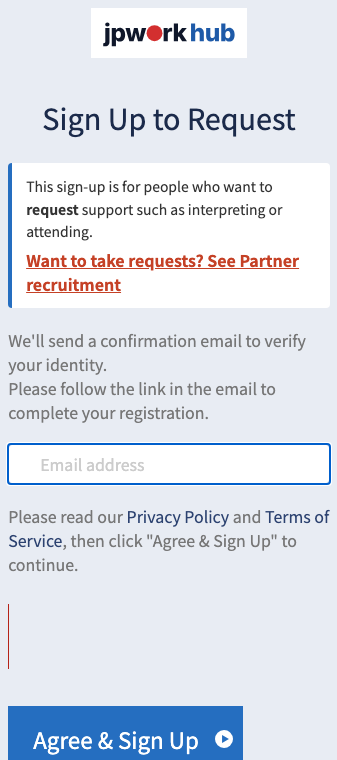
Tap (or click) "Sign up to request (free)" under "Need help in Japan?" at the top right of the screen (on a smartphone, open the menu first), enter your email address, and click "Agree & Sign Up."
You'll receive an email at the address you entered, containing a link to complete your full registration.
1-2. Full Registration (Profile)
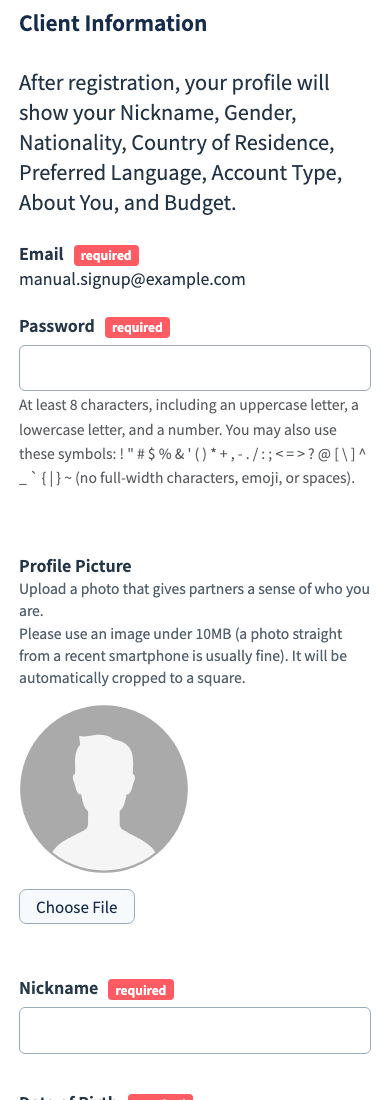
Follow the link in the email to go to the full registration screen.
Enter your password, nickname, date of birth, gender, nationality, and other details useful for matching with partners — such as country of residence, preferred language, account type (individual/corporate), budget, and self-introduction. If you need to stop partway, press "Save Draft" to keep what you've entered in this browser.
You'll also register your legal name. Partners only see your nickname. Agree to our Privacy Policy and Terms of Service, then click "Agree & Sign Up" to complete your client registration.
2. Sending a Request
2-1. Choosing a Service and How to Request
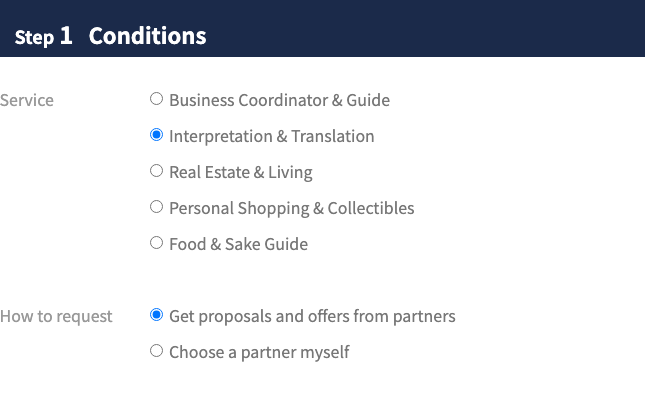
From "Send a Request" in the menu, choose the service you need from the 5 categories:
"Business Coordinator & Guide", "Interpretation & Translation", "Real Estate & Living", "Personal Shopping & Collectibles", or "Food & Sake Guide".
Next, choose one of the two ways to request.
- "Get proposals and offers from partners": partners in the areas you choose are notified, and those who can help propose a plan with a set price. You don't enter a budget. This works well when you're not sure whom to ask.
- "Choose a partner myself": enter your budget to see the partners who match your conditions, then choose who receives your request.
- From "Ask this partner" on a partner's profile, you can send a consultation to that partner only. You don't enter a budget, and once the partner accepts, you can talk by message right away.
Then select the area(s) you'd like a partner to cover and, if you like, your preferred languages. If you'd like online support, check "Select All" for the areas.
2-2. Choosing Who Receives It (When Choosing a Partner Yourself)
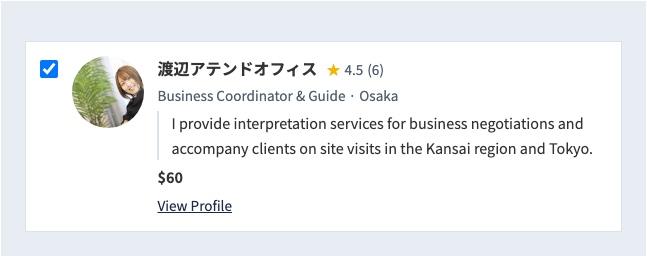
Enter your budget (in JPY or USD) to see the partners who match your conditions. Check the partners you'd like to send your request to. Use "View Profile" to see each partner's plans and introduction.
<Notes>
If no partners are found, try changing your areas or budget, or switch to "Get proposals and offers from partners."
2-3. Entering the Title, Deadline and Details
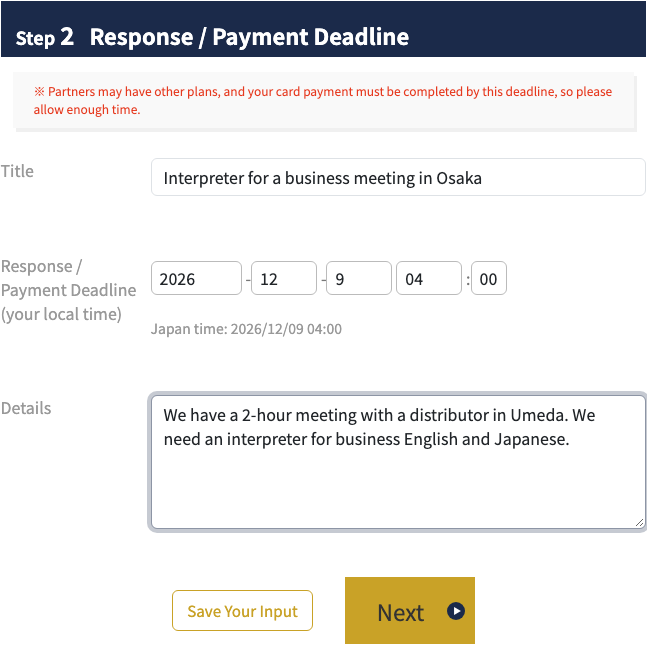
Enter a title, the response / payment deadline, and the details of your request (up to 400 characters), then tap (or click) "Next." Enter the deadline in your local time (Japan time is shown as well).
Press "Save Your Input" to keep what you've entered in this browser, so you can continue later.
<Notes>
Partners may have other commitments, and payment also takes some time, so please allow enough time when setting your deadline.
When you request proposals, the title and details of your request are visible to all logged-in users. Please don't include anything that identifies you, such as your company name, your name or contact details.
2-4. Reviewing and Submitting
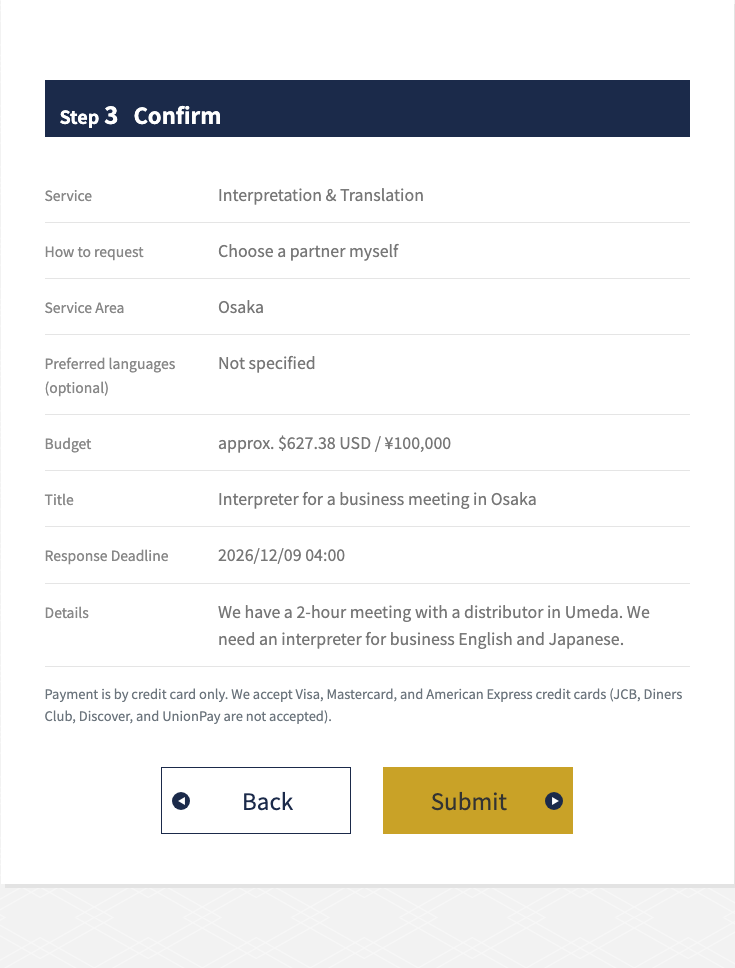
If everything you entered is correct, tap (or click) "Submit."
Once you see the "Your request has been sent" screen, your request has been submitted. Please wait for proposals or applications from partners. You can check them in "My Requests."
3. Choosing a Partner and Booking
3-1. When You Receive Proposals
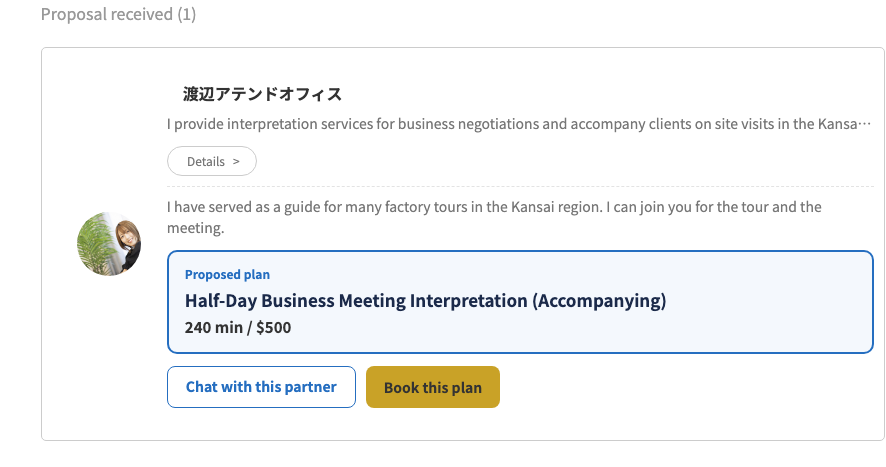
Open your request from "My Requests" to see the plans partners have proposed (contents, duration and price) under "Proposals received." Click "Details" to view a partner's profile.
Press "Chat with this partner" to discuss the details or schedule with that partner by message, even before you pay.
When you've decided on a plan, press "Book this plan." You'll be taken to the payment screen. The amount you pay is the price of that plan.
3-2. When You Chose Partners Yourself
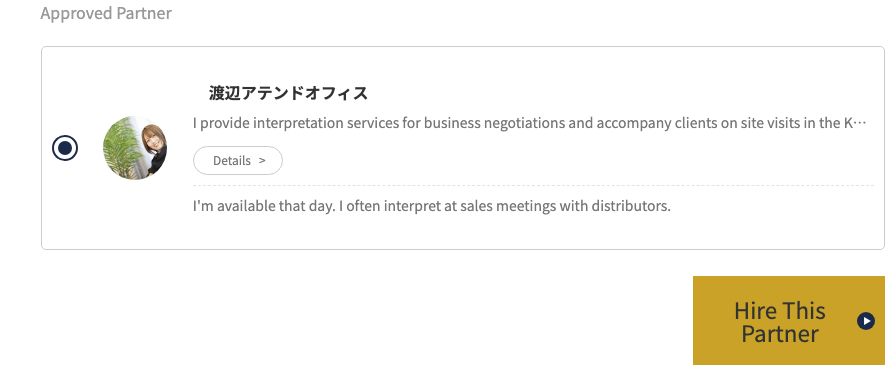
Open your request from "My Requests" to see the partners who applied and their comments. Click "Details" to view each partner's full profile, including their qualifications, plans and self-introduction.
Select the partner you'd like to work with and press "Hire This Partner." You'll be taken to the payment screen.
<Important>
If, after you book, a partner is unable to provide the service due to unavoidable circumstances on their end, the full matching fee will be refunded. Arranging an alternative partner or otherwise resolving the situation is, in principle, a matter to discuss directly with the partner — our operations team does not mediate. If you're unable to reach them, please contact our operations team using the inquiry form.
4. Payment
4-1. Paying by Credit Card
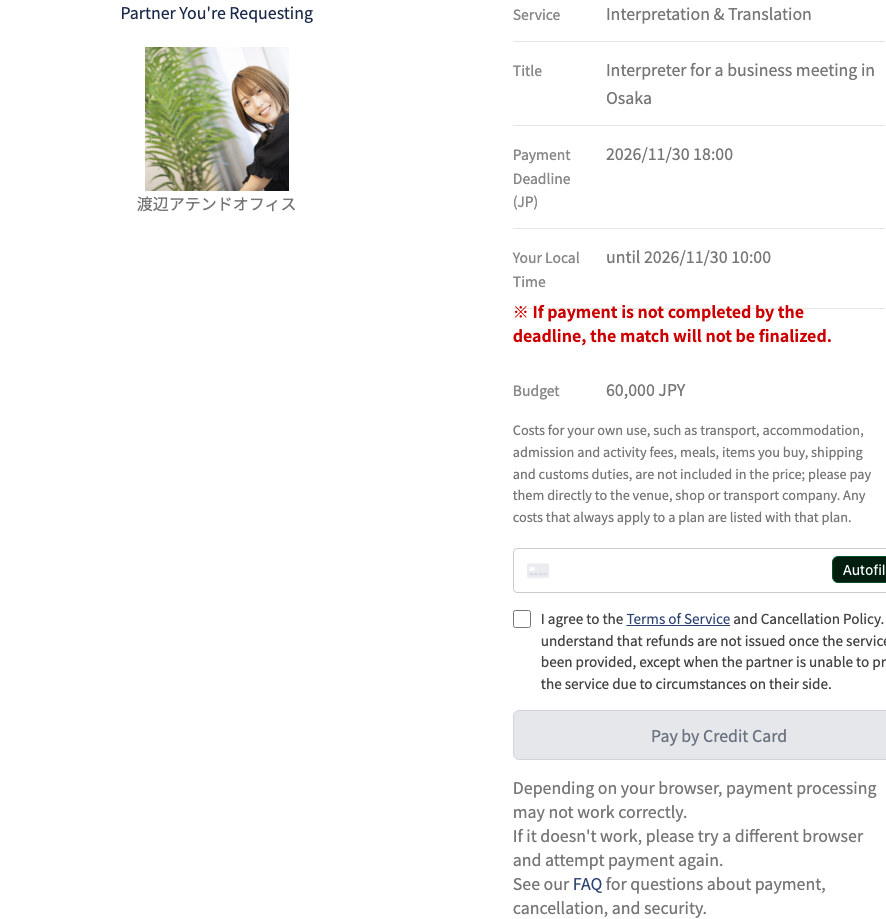
jpwork hub only accepts credit card payments.
[Supported Credit Cards]
- Visa
- Mastercard
- American Express
The following cards cannot be used: JCB, Diners Club, Discover, UnionPay
Enter your card details, check the box to agree to the Terms of Service and Cancellation Policy, and tap (or click) "Pay by Credit Card." Payments are processed through Stripe, our payment provider, and we never retain any card information other than the last 4 digits and expiration date.
Costs for your own use, such as transport, accommodation, admission and meals, are not included in the price. Please pay them directly to the venue, shop and so on. Any costs that always apply to a plan are listed with that plan.
Once you see the "Your payment has been completed" screen, payment is complete. Send your partner a message.
<Notes>
Please note that if payment is not completed by the deadline, the request will be closed.
5. Messages and Receipts
5-1. Communicating with Your Partner
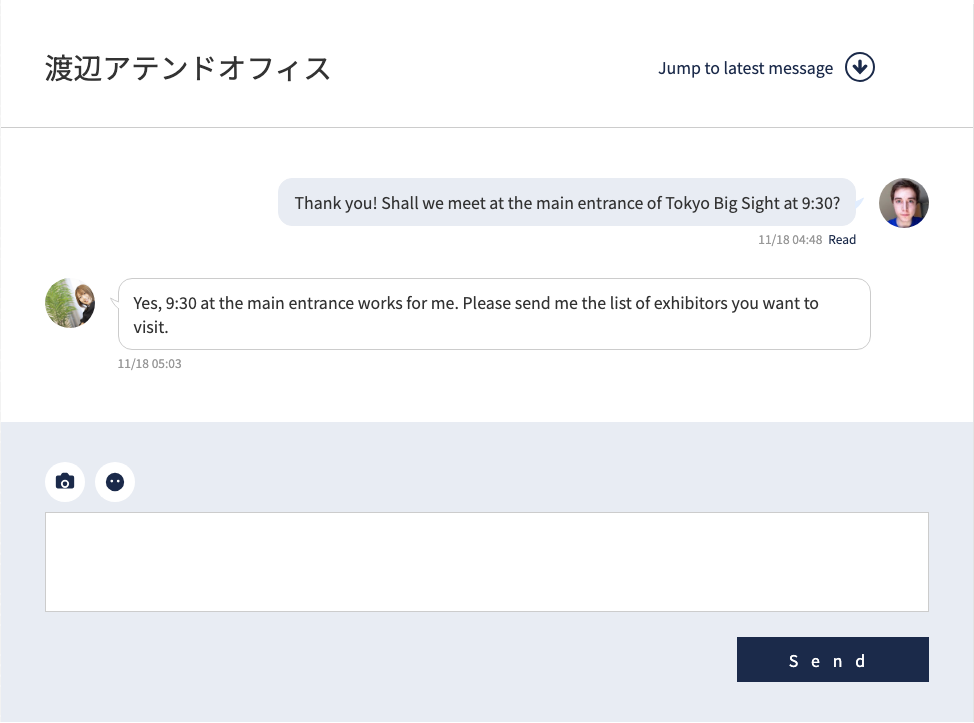
Once payment is complete, use "Send Message" on the request details to exchange messages with your partner. Use it to arrange where to meet and to confirm how the service will be carried out (online or in person).
Once you mark the contract as completed, you can no longer send messages.
<Notes>
Please don't share your personal email address or phone number — use only the messaging feature to communicate with your partner. To help keep the site safe and maintain service quality, message content may be automatically monitored. If a possible violation is detected, we may also review your messages with the same partner across your other requests.
5-2. Issuing a Receipt
For a paid request, use "Issue a receipt" on the request details to issue a receipt as a PDF. Enter the addressee (your company name or your name) before issuing it. Receipts are written in both Japanese and English.
6. Completing the Contract
6-1. Rating Your Partner and Completing the Contract
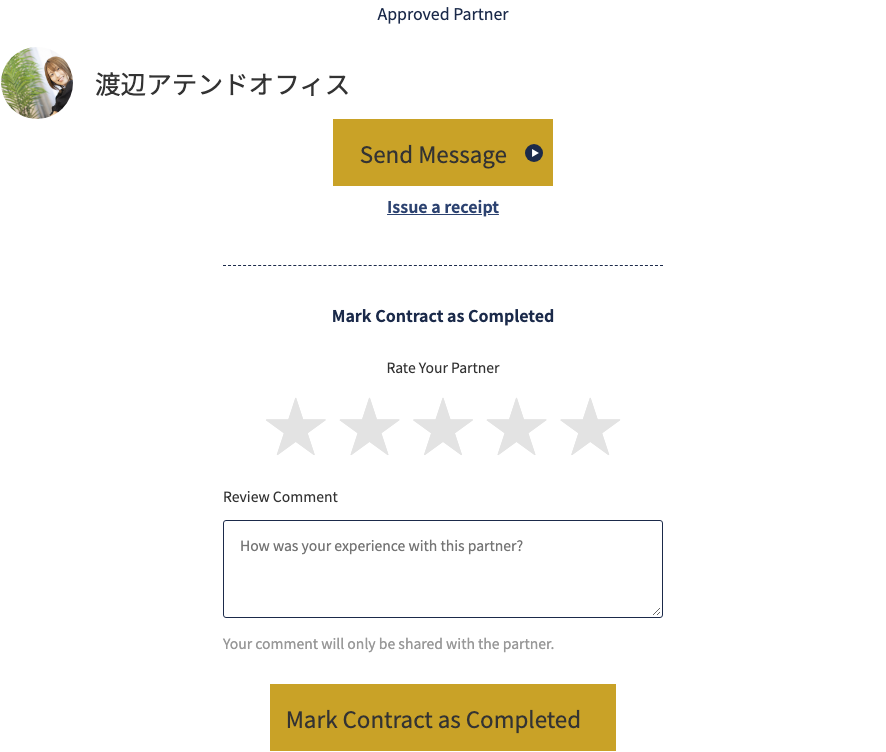
When the service is finished, enter a star rating and a comment for your partner on the request details, then press "Mark Contract as Completed." Both the rating and the comment are required. The comment is shown only to the partner.
<Important>
Once the contract is completed, you can no longer send messages, and cancellations and refunds are no longer available. Please press it only after the service is finished.
7. Changes & Cancellations
7-1. Cancelling Before Payment
Before you pay, you can cancel at any time with "Cancel This Request" on the request details. Partners who have already applied or proposed will be notified.
A cancelled request can be sent again with the same contents using "Send this request again" (just enter a new response deadline).
7-2. Changing Your Request
For minor adjustments — such as scheduling or how the service will be carried out — please discuss directly with your partner by message.
If you'd like to make a major change to the request itself, please contact our operations team using the inquiry form.
7-3. Cancelling After Payment
If you wish to cancel after payment, please be sure to contact our operations team using the inquiry form, in addition to notifying your partner.
Please check our Terms of Service for detailed conditions, including whether a cancellation fee applies. For a client-initiated cancellation, the refund amount will have the Stripe payment processing fee (approx. 3.6%) and other actual costs deducted. If the partner is unable to provide the service due to unavoidable circumstances on their end, the full matching fee will be refunded. In either case, no cancellation or refund is available once the contract has been marked as completed.