
Client Manual
1. Client Registration
1-1. Provisional Registration (Email)
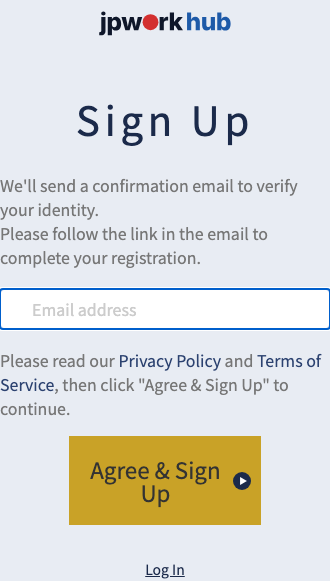
Tap (or click) "Client Sign Up" at the top right of the top page, enter your email address, and click "Agree & Sign Up."
You'll receive an email at the address you entered, containing a link to complete your full registration.
1-2. Full Registration (Profile)
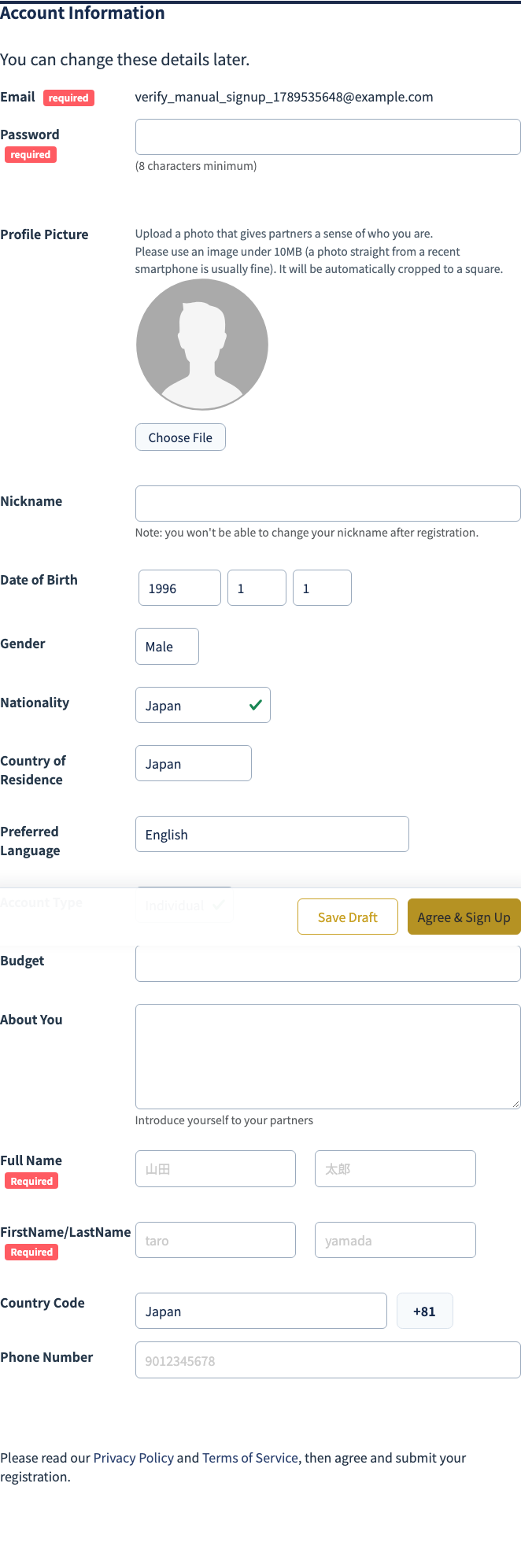
Follow the link in the email to go to the full registration screen.
Enter your password, nickname, date of birth, nationality, and other details useful for matching with partners — such as country of residence, preferred language, account type (individual/corporate), budget, and self-introduction.
You'll also register your legal name and phone number, which will be disclosed to your partner once a contract is finalized. Agree to our Privacy Policy and Terms of Service, then click "Agree & Sign Up" to complete your client registration.
2. Sending a Request
2-1. Choosing a Category and Conditions
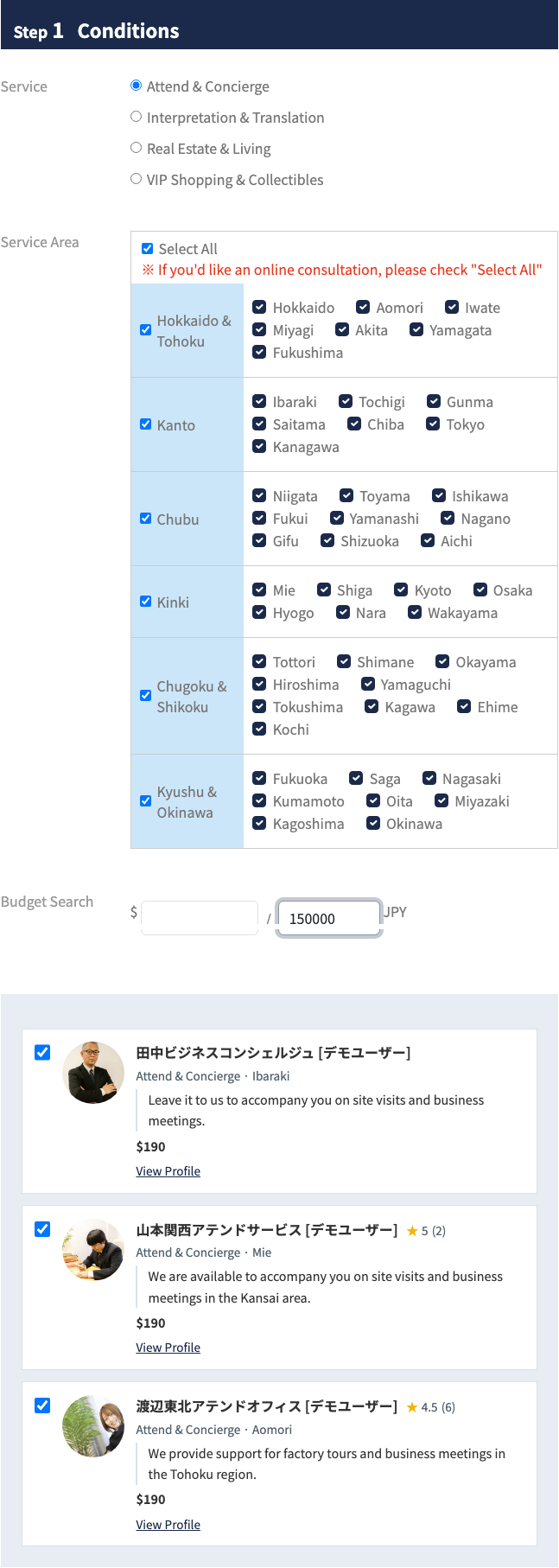
From "Send a Request" in the menu, choose the service you need from the 5 categories:
"Business Coordinator & Guide", "Interpretation & Translation", "Real Estate & Living", "VIP Shopping & Collectibles", or "Food & Sake Guide".
Next, select the area(s) you'd like a partner to cover. If you'd like an online consultation, check "Select All."
<Notes>
When you enter your desired budget (in JPY or USD), an estimated number of matching partners will be displayed. If the number is low, try adjusting your area or budget.
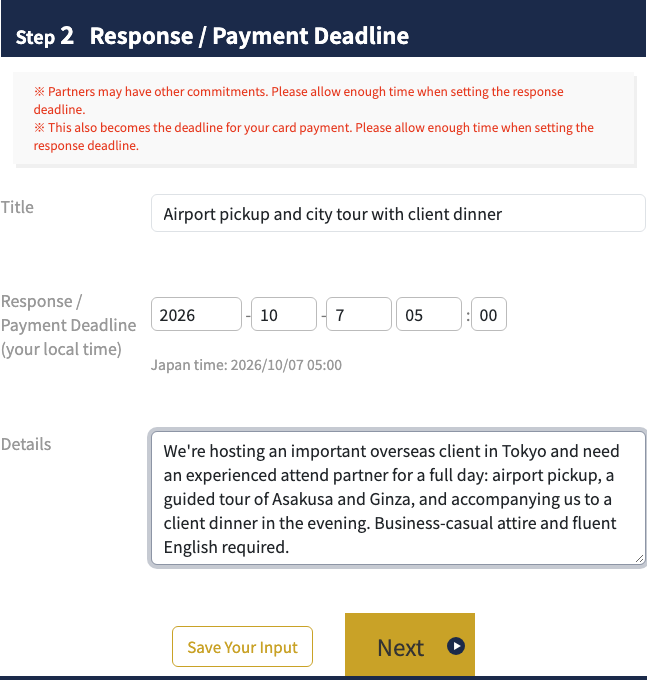
Enter a title, response deadline, and details of your request, then tap (or click) "Next."
<Notes>
Partners may have other commitments as well, so please allow enough time when setting your response deadline.
2-2. Reviewing and Submitting
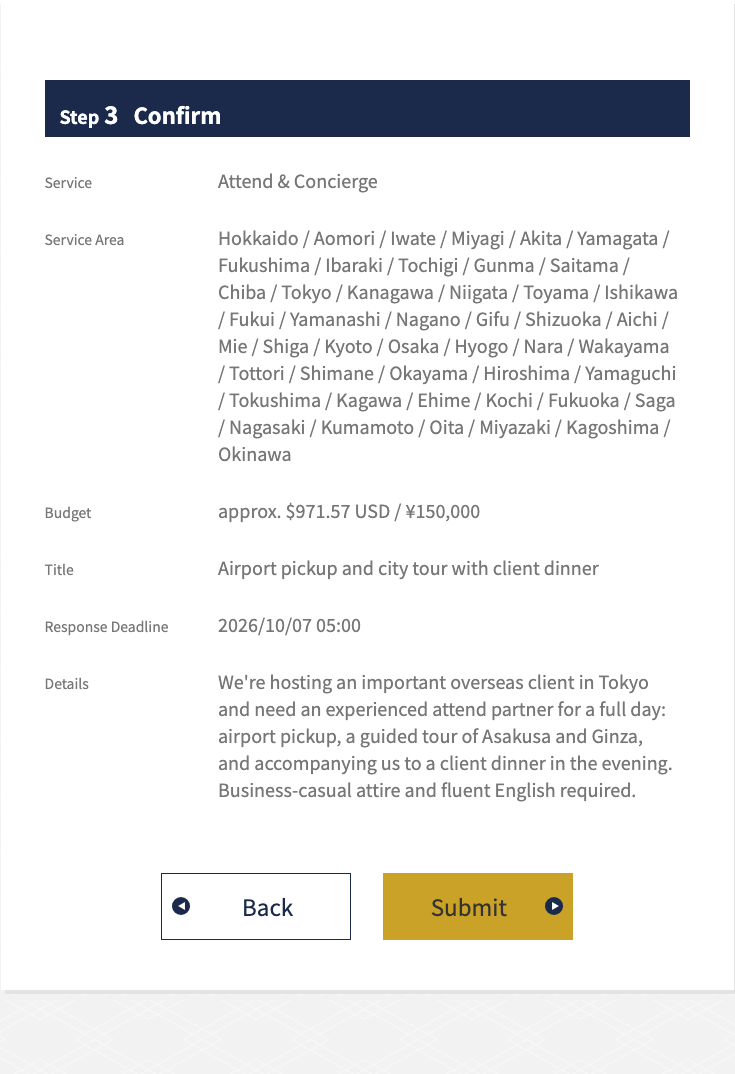
If everything you entered is correct, tap (or click) "Submit."
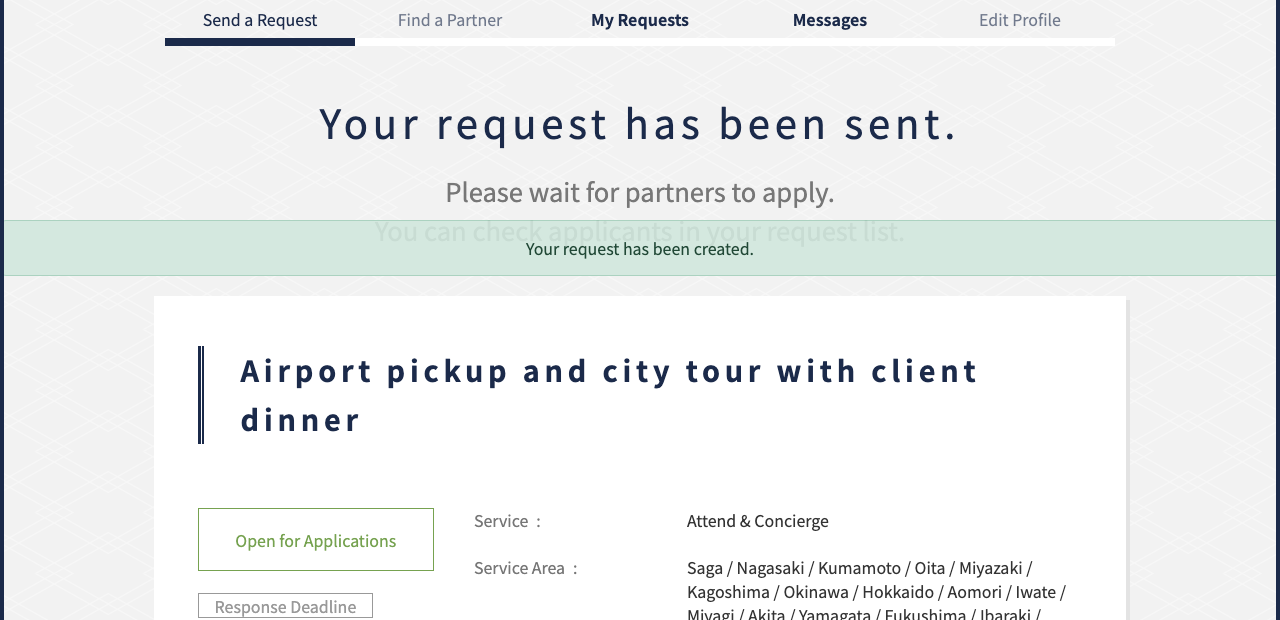
Once you see the "Your request has been sent" screen, your request has been submitted. Please wait for partners to apply.
3. Reviewing and Selecting a Partner
3-1. Checking Applications
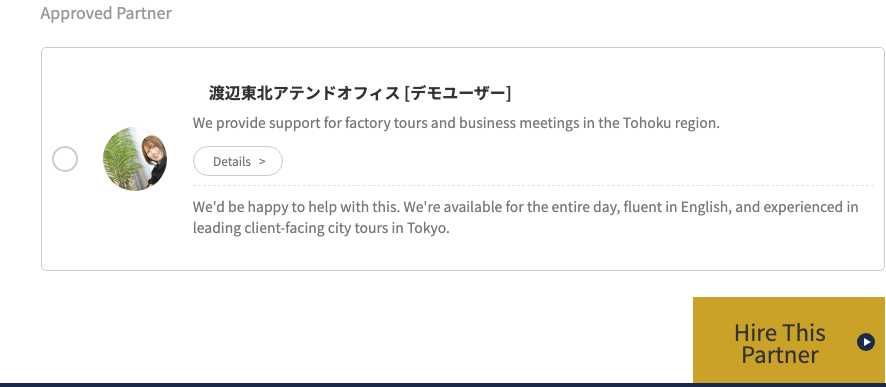
Open your sent request from "My Requests" to see a list of partners who have responded that they're available.
Click "Details" to view each partner's full profile, including their qualifications, track record, and self-introduction.
3-2. Selecting a Partner
Once you've decided which partner you'd like to work with, check the box next to their name and tap (or click) "Select This Partner." You'll be taken to the payment screen.
<Important>
If, after being selected, a partner is unable to provide the service due to unavoidable circumstances on their end, the full matching fee will be refunded. Arranging an alternative partner or otherwise resolving the situation in detail is, in principle, a matter to discuss directly with the partner — our operations team does not mediate. If you're unable to reach them, please contact our operations team using the inquiry form.
4. Payment
4-1. Paying by Credit Card
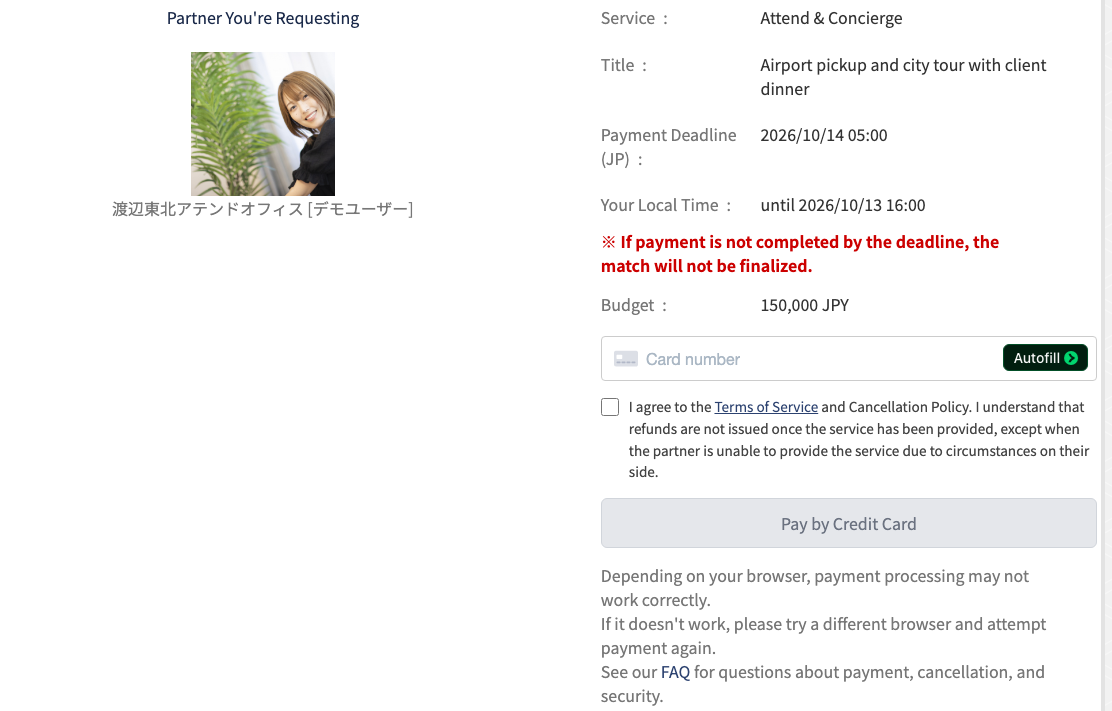
jpwork hub only accepts credit card payments.
[Supported Credit Cards]
- Visa
- MasterCard
- American Express
Enter your card details and tap (or click) "Pay by Credit Card." Payments are processed through Stripe, our payment provider, and we never retain any card information other than the last 4 digits and expiration date.
<Notes>
Please note that if payment is not completed by the deadline, the match will not be finalized.
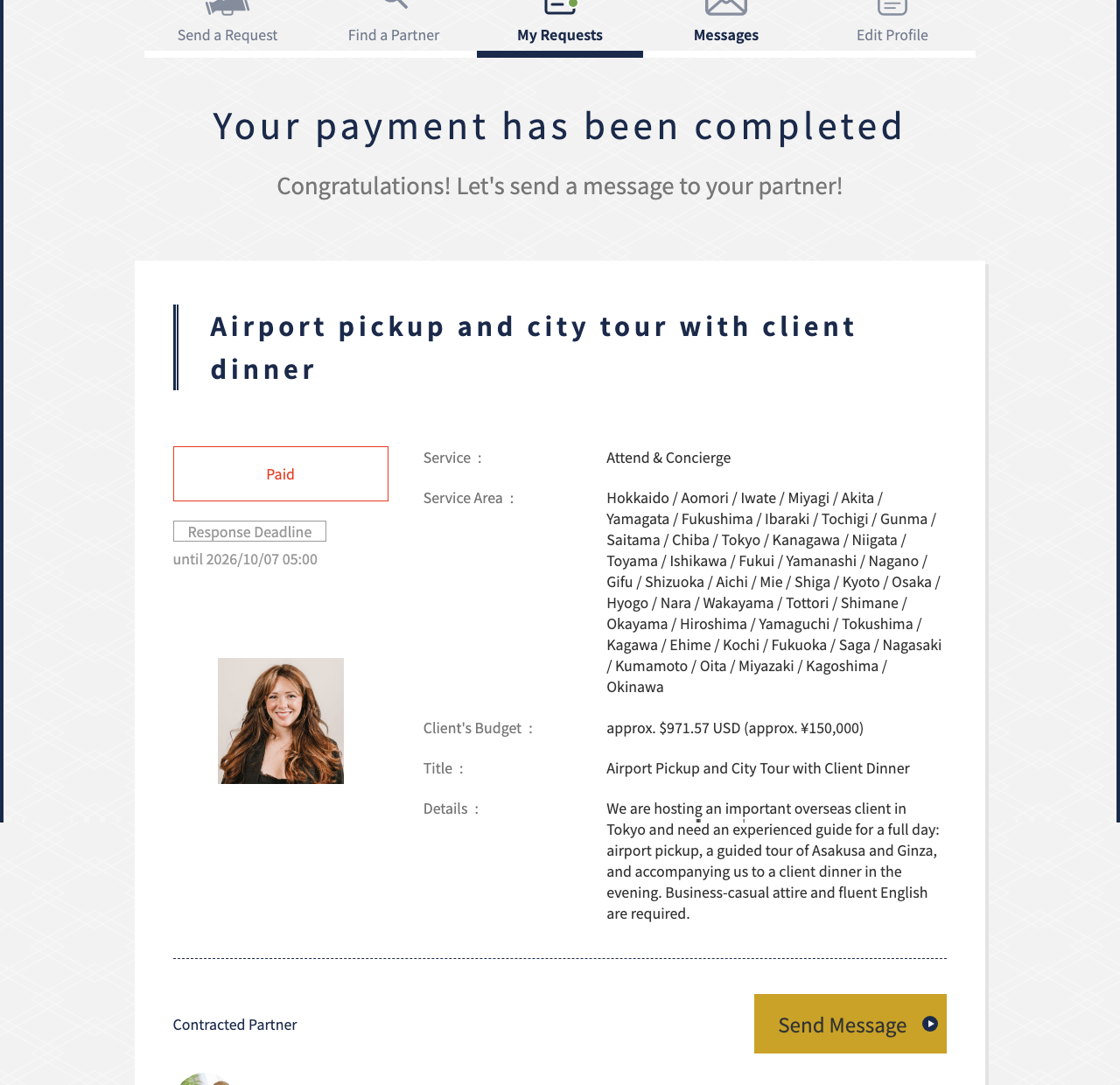
Once you see the "Your payment has been completed" screen, payment is complete. Use "Send Message" to start communicating with your partner.
5. Messaging Feature
5-1. Communicating with Your Partner
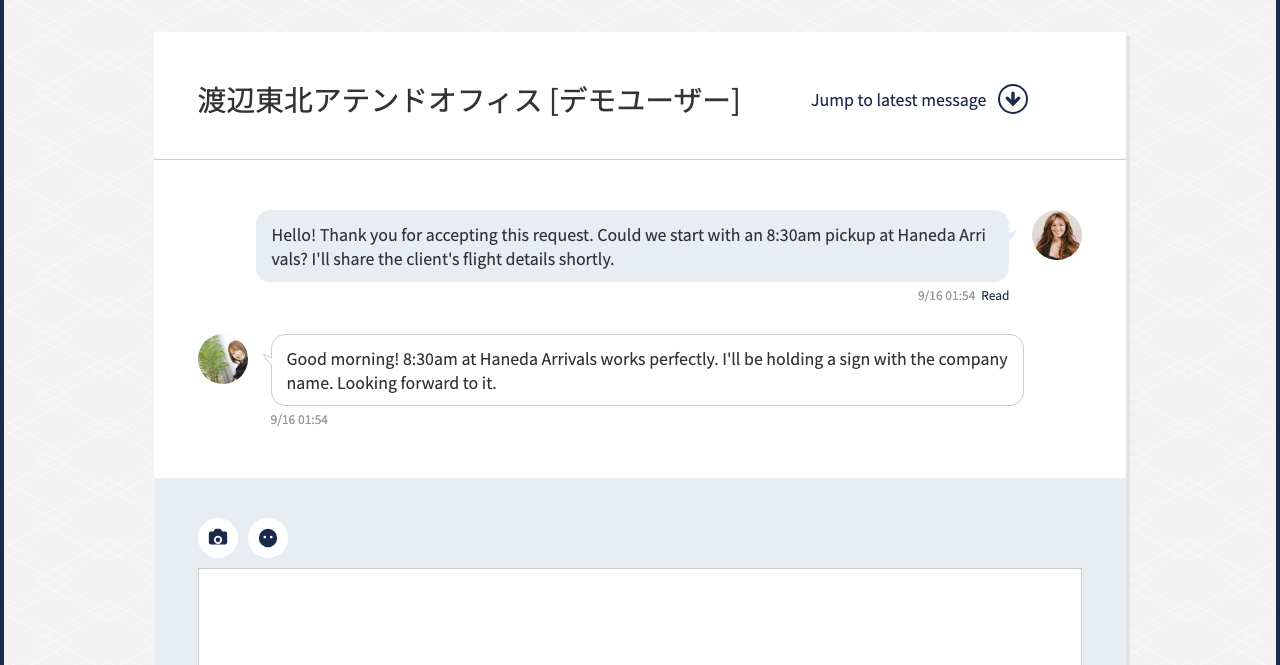
Once payment is complete, the messaging feature for that request is unlocked. Use it to coordinate scheduling and confirm how the service will be carried out (online or in person).
Please note that once the contract is marked as completed, you will no longer be able to send messages.
<Notes>
Please don't share your personal email address or phone number — use only the messaging feature to communicate with your partner. To help keep the site safe and maintain service quality, message content may be automatically monitored. If a possible violation is detected, we may also review your messages with the same partner across your other requests.
6. Changes & Cancellations
6-1. Changing Your Request
For minor adjustments — such as scheduling or how the service will be carried out — please discuss directly with your partner via the messaging feature.
If you'd like to make a major change to the request itself, please contact our operations team using the inquiry form.
6-2. About Cancellations
If you wish to cancel after a contract has been finalized, please be sure to contact our operations team using the inquiry form, in addition to notifying your partner.
Please check our Terms of Service for detailed conditions, including whether a cancellation fee applies. For a client-initiated cancellation, the refund amount will have the Stripe payment processing fee (approx. 3.6%) and other actual costs deducted. If the partner is unable to provide the service due to unavoidable circumstances on their end, the full matching fee will be refunded. In either case, no cancellation or refund is available once the contract has been marked as completed.