
Partner Manual
1. Partner Login
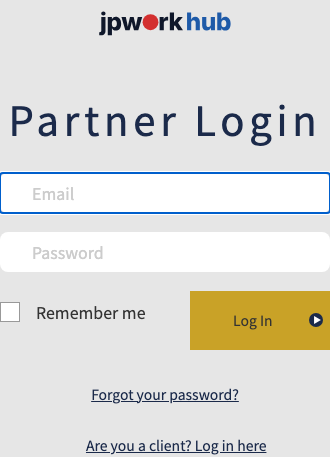
Sign in from the dedicated partner login page, accessible via "Partner Login" at the very bottom of the top page. This is separate from the regular client login page.
Use the email address and password you set when registering as a partner. If you've forgotten your password, use "Forgot your password?" to reset it.
2. Reviewing Requests & Applying/Declining
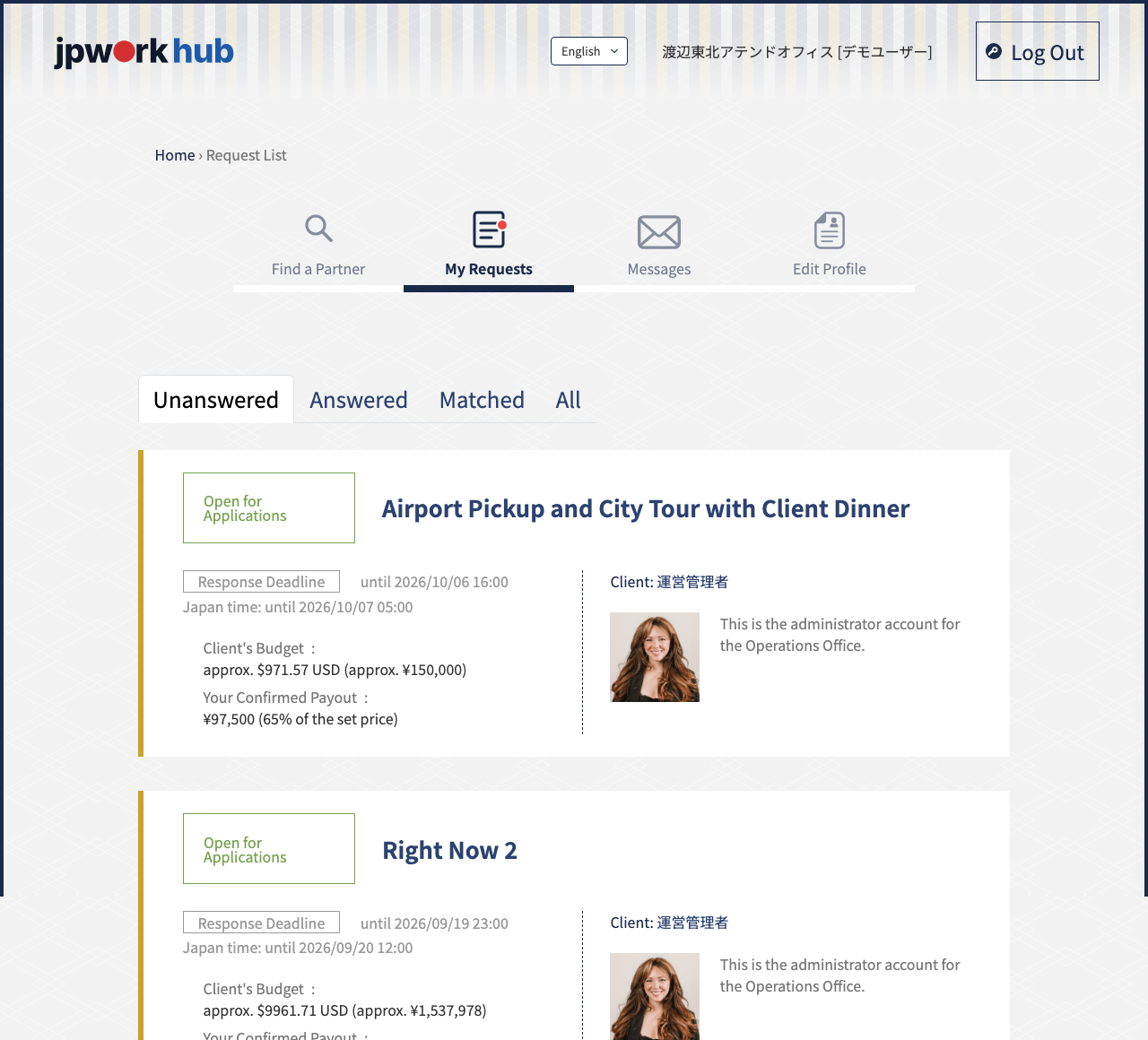
After signing in, "Request List" shows requests matching your service area and offered services. Use the "Unanswered," "Answered," and "Matched" tabs to filter.
Each card shows the response deadline, the client's budget, and the amount you'll receive if matched (your payout).
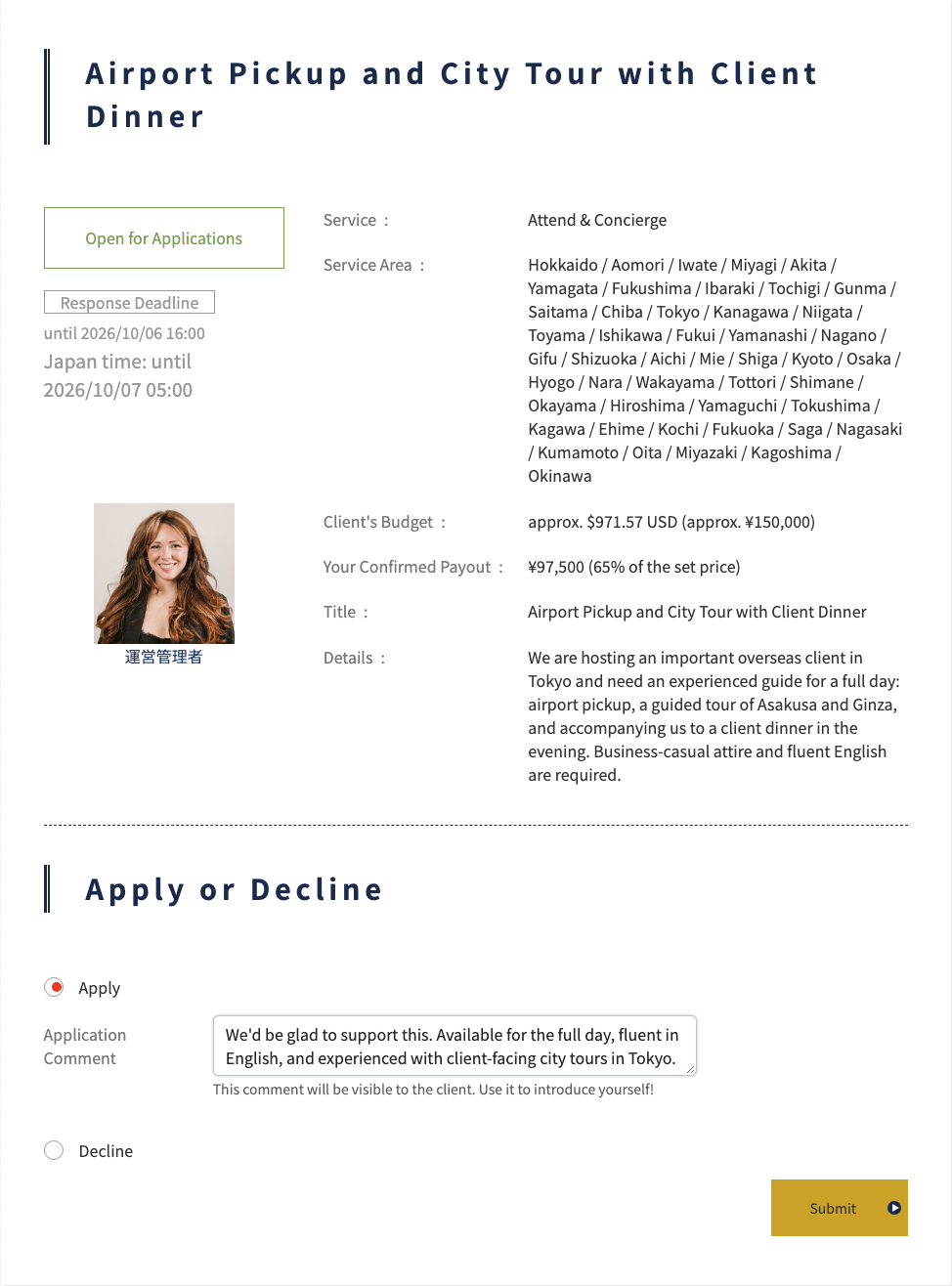
Click a request's title to open its details. Review the content, then select "Apply" if you're available or "Decline" if not, add a comment, and click "Submit."
If the client selects a different partner after you've applied, that request won't be matched with you. The messaging feature only unlocks once a match is finalized and payment is complete.
<Notes>
You can change your response at any time before a match is finalized, via "Change Application Status."
3. Messaging Feature
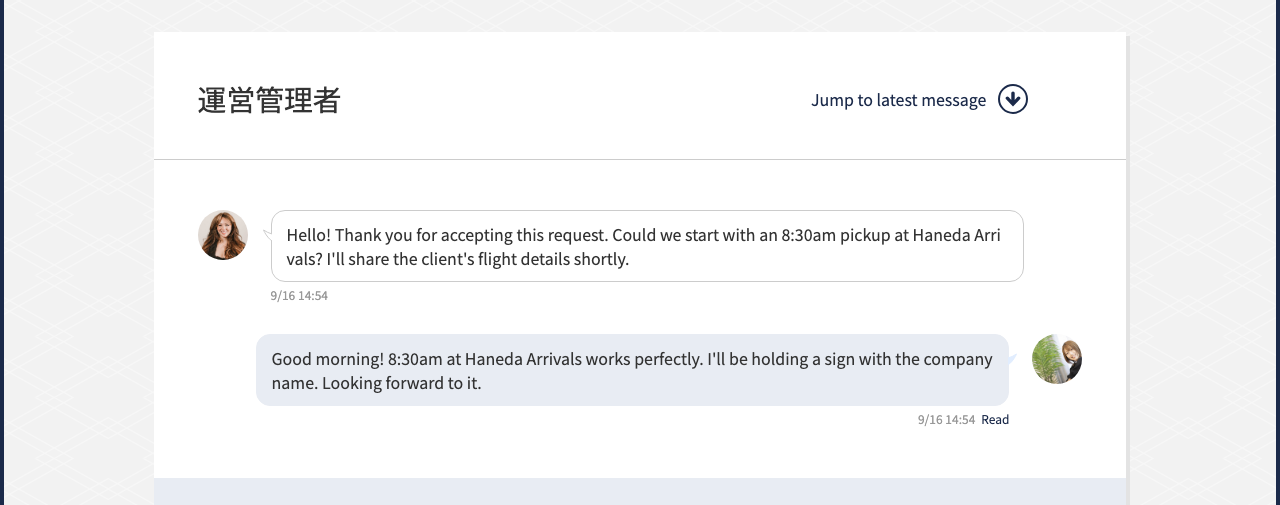
Once you're matched with a client and payment is complete, the messaging feature for that request is unlocked. Use it to coordinate scheduling and confirm how the service will be carried out (online or in person). Please note that once the client marks the contract as completed, you will no longer be able to send messages.
<Notes>
Please don't exchange personal contact information, such as a personal email address or phone number. Message content is automatically monitored to help us improve the site. If a possible violation is detected, we may also review your messages with the same client across your other requests.
4. Editing Your Profile
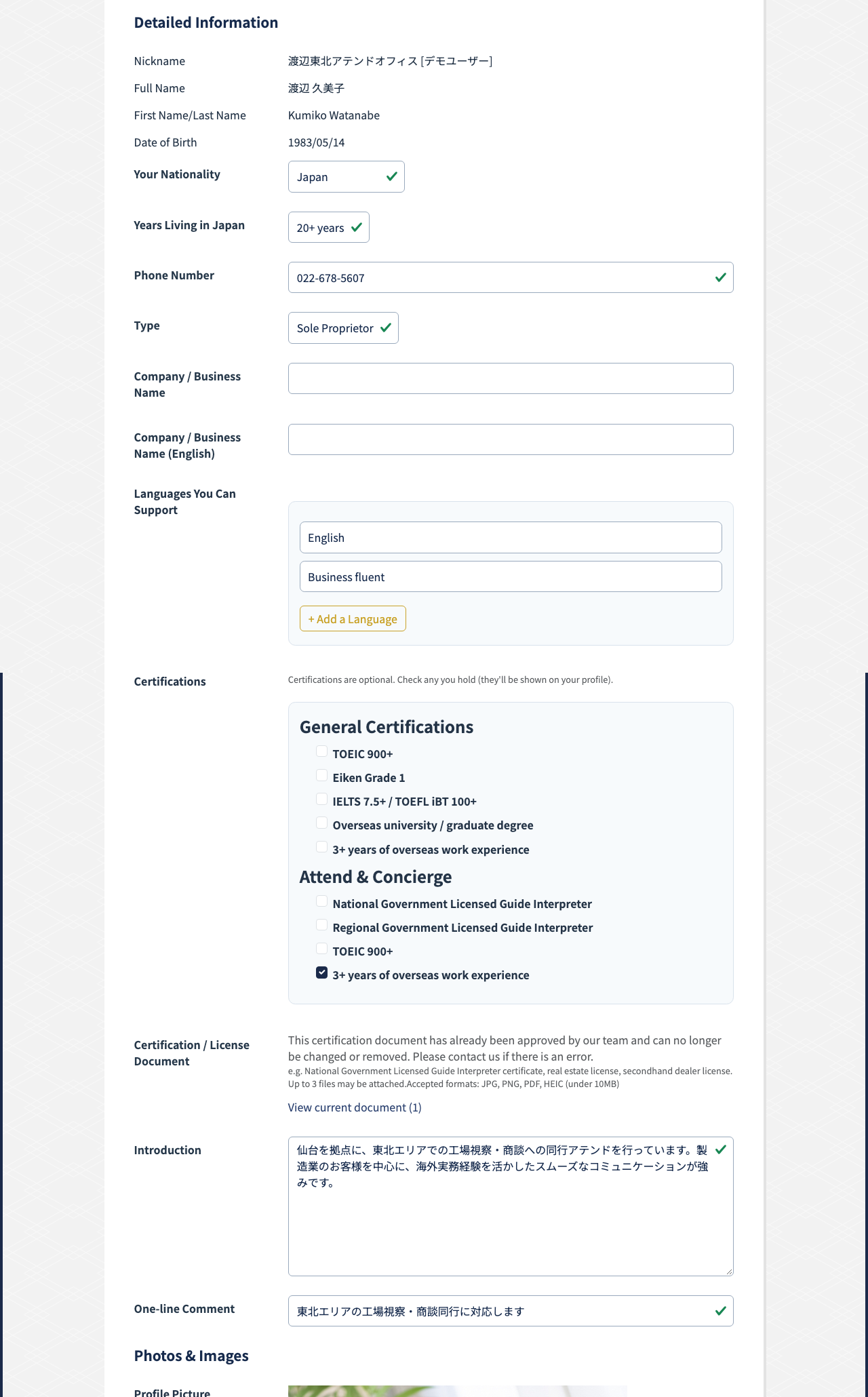
From "Edit Profile," you can update basic details such as your nickname, nationality, years of residence in Japan, contact information, and account type (individual/corporate).
Filling out your supported languages, qualifications, self-introduction, social media links, and profile photo helps clients feel confident applying to work with you. You'll also set your service area(s) from this screen.
You can also register or update the bank account (bank name, branch, account type, account number, account holder name) that your payouts will be transferred to. Payment cannot be made without this information on file.
From "Payment Method" on your mypage, you can optionally connect a Stripe (payment processor) account to receive your payouts automatically on Stripe's own payout schedule (normally every Friday). If you don't connect, we'll continue to manually transfer your payout, as a single batch on the last business day of the following month, to the bank account registered above.
5. Payment
The amount you receive is the amount the client pays, minus jpwork hub's commission. The commission rate varies by service category.
・Business Coordinator & Guide: 35% (25% during a limited-time campaign, until February 28, 2027 (Sun))
・Interpretation & Translation: 30% (20% during a limited-time campaign, until February 28, 2027 (Sun))
・Real Estate & Living: 35% (25% during a limited-time campaign, until February 28, 2027 (Sun))
・VIP Shopping & Collectibles: 30% (20% during a limited-time campaign, until February 28, 2027 (Sun))
・Food & Sake Guide: 30% (20% during a limited-time campaign, until February 28, 2027 (Sun))
You can check the payout amount on each request's detail and list screens.
When payment is transferred depends on your payment method. If you've connected Stripe, you'll be paid automatically on Stripe's own payout schedule (normally every Friday). If not, payment is transferred in a single batch to the bank account on your profile, on the last business day of the month following the client's payment.
For questions about your payout, please contact our operations team using the inquiry form.
<Notes>
jpwork hub covers all transfer fees, including Stripe's payout fees if you're connected via Stripe.
6. Changes & Cancellations
6-1. Changes Before a Match Is Finalized
Before a match is finalized, you can change your response (including withdrawing an application) at any time from "Request List."
6-2. Changes & Cancellations After a Match Is Finalized
Please discuss scheduling or how the service will be carried out directly with the client via the messaging feature. If circumstances on your end make it difficult to provide the service, please notify the client right away, and also be sure to contact our operations team using the inquiry form. In this case, the client will receive a full refund of the matching fee, but we will never automatically deduct a penalty from your future payouts for compensation already paid to you. Please check our Terms of Service for detailed conditions. Please note that we do not mediate disputes between clients and partners or negotiate refunds on your behalf. Please first discuss the matter directly with the other party; if you're unable to reach them, or they are not responding in good faith, please report this to us using the inquiry form. After investigating, we may suspend the account of a party found to have acted in bad faith.